
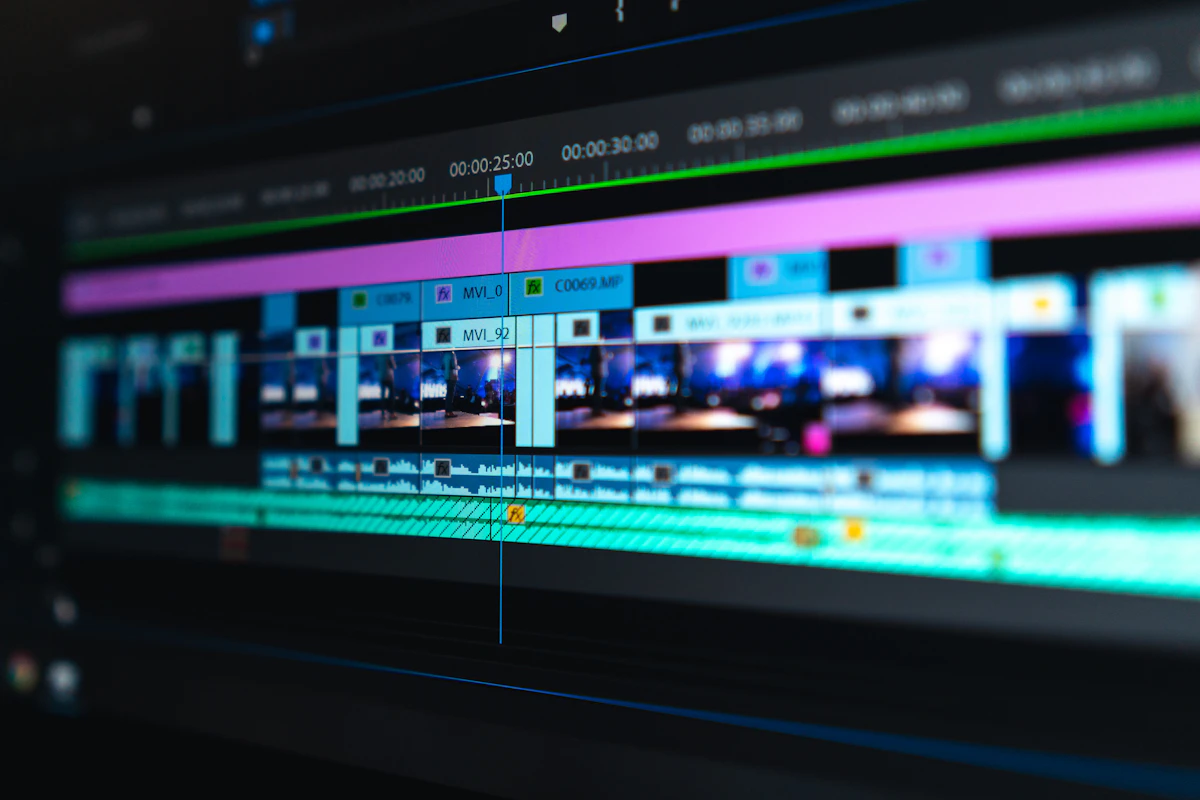
Best Monitor for Video Editing: Size, Color & Resolution
Choosing the right monitor for video editing can be the difference between color-accurate, broadcast-ready work and footage that looks wrong on every screen your viewers own. Unlike gaming or office monitors where brightness and response time dominate, video editing monitors live and die by color accuracy, color space coverage, bit depth, and calibration stability. This guide covers every spec that matters and gives you the best monitor choices for every budget in 2026.
What Makes a Monitor Good for Video Editing?
Before diving into specific models, it helps to understand what actually matters for video editing — because the specs that matter are very different from gaming monitors:
- Color accuracy (Delta E): Delta E measures color deviation from a reference standard. A Delta E below 2 is considered "good" for professional use — most professional video editors target Delta E < 1. Consumer monitors often ship with Delta E of 3–6 without calibration.
- Color gamut (sRGB / DCI-P3 / Rec.709 / Rec.2020): Most web and streaming content targets sRGB/Rec.709. Modern digital cinema and HDR delivery targets DCI-P3. Broadcast television uses Rec.709. You need a monitor that covers at least 100% sRGB and ideally 95%+ DCI-P3 to grade accurately for all platforms.
- Bit depth (8-bit vs 10-bit): 10-bit panels display 1.07 billion colors vs 16.7 million on 8-bit. For HDR grading and smooth gradients, 10-bit is non-negotiable. Many monitors advertise "8-bit + FRC" (dithering) — this approximates 10-bit but isn't a true 10-bit panel.
- Resolution: 4K (3840×2160) lets you view your footage at 100% zoom on a timeline without scaling artifacts. This is valuable for precision work. A 27-inch 4K monitor gives 163 PPI — excellent sharpness. A 32-inch 4K gives 138 PPI — still sharp and provides more room for multi-panel NLE layouts.
- Panel type (IPS vs OLED): IPS dominates professional video monitors for its color consistency at wide viewing angles and stable brightness. OLED delivers perfect blacks and infinite contrast but can have brightness uniformity issues and burn-in risk. For reference monitoring, IPS or high-quality IPS-adjacent panels (like Apple's Liquid Retina XDR) are preferred.
Monitor Size for Video Editing: 27" vs 32" vs Ultrawide
| Size | Resolution | PPI | Best For |
|---|---|---|---|
| 24" | 1920×1080 or 2560×1440 | 91–122 PPI | Budget entry point; limited for serious work |
| 27" ⭐ | 3840×2160 (4K) | 163 PPI | Best balance: sharp, compact, full NLE layout |
| 32" | 3840×2160 (4K) | 138 PPI | Larger workspace; excellent for dual-pane NLEs |
| 34" Ultrawide | 3440×1440 | 110 PPI | Timeline width; not ideal for color reference |
For most solo editors, a 27-inch 4K IPS monitor is the sweet spot. The 163 PPI density is sharp enough to assess fine details, the footprint fits comfortably on most desks, and the price-to-quality ratio is better than 32-inch at the same resolution. If you primarily work in Premiere Pro or DaVinci Resolve and want more horizontal space for your timeline, a 32-inch 4K monitor is worthwhile — the larger canvas makes a real difference in workflow efficiency.
Ultrawide monitors (34" 21:9): Useful for extended timelines, but the 3440×1440 resolution doesn't give you the pixel density or 4K reference monitoring capability of a 27" 4K. Many editors use an ultrawide as a secondary "work" screen paired with a 27" 4K reference monitor for color grading.
Best Monitors for Video Editing by Budget (2026)
| Monitor | Size | Panel / Resolution | Color Coverage | Price Range |
|---|---|---|---|---|
| BenQ PD2706U | 27" | IPS / 4K | 100% sRGB, 95% DCI-P3 | $400–500 |
| ASUS ProArt PA279CRV ⭐ | 27" | IPS / 4K | 100% sRGB, 99% DCI-P3 | $450–550 |
| LG 32UN880 (Ergo) | 32" | IPS / 4K | 95% DCI-P3 | $600–750 |
| Apple Studio Display | 27" | IPS / 5K (5120×2880) | P3 wide color, True Tone | $1,599 |
| Sony BVM-HX310 (reference) | 31" | LCD / 4K | DCI-P3, Rec.2020 | $30,000+ |
Color Accuracy Deep Dive: sRGB vs DCI-P3 vs Rec.709
The most confusing part of buying a video editing monitor is understanding color spaces. Here's a practical breakdown:
- Rec.709 / sRGB: These are effectively the same color space. Nearly all YouTube, Netflix (SDR), and broadcast television content is mastered in Rec.709. If you edit for web/streaming in SDR, a monitor that covers 100% sRGB/Rec.709 is sufficient. This is the baseline requirement.
- DCI-P3: Digital cinema standard — about 25% wider than sRGB. Required for HDR content, streaming platforms' HDR tiers (Netflix HDR, Disney+ HDR, Apple TV+ HDR), and theatrical releases. A monitor covering 95–99% DCI-P3 lets you grade HDR content accurately without guessing what the final mastered image will look like.
- Rec.2020: Ultra-wide gamut for UHD Blu-ray and broadcast HDR. No current consumer monitor covers more than ~75–80% of Rec.2020. Professional reference monitors (Sony, Dolby Vision) get closer but cost tens of thousands of dollars.
Practical recommendation: For indie filmmakers and YouTubers, a monitor covering 100% sRGB and 95%+ DCI-P3 like the ASUS ProArt PA279CRV handles every deliverable you'll produce. You'll grade in Rec.709 for SDR and have enough gamut headroom for basic HDR work.
The ASUS ProArt PA279CRV: Best Value Video Editing Monitor
The ASUS ProArt PA279CRV (27-inch, 4K, IPS) consistently tops best-for-editing lists in 2026 and for good reason. Key specs: 3840×2160 resolution at 163 PPI, 99% DCI-P3 / 100% sRGB / 100% Rec.709 coverage, factory-calibrated Delta E < 2, true 10-bit (1.07 billion colors), USB-C 96W charging, and an ergonomic stand with full height/tilt/swivel/pivot adjustment.
For $450–550, you get reference-grade color accuracy that would have cost $3,000+ a decade ago. It connects directly to a MacBook Pro via USB-C Thunderbolt, charges the laptop simultaneously, and doesn't require any software installation for calibration (it ships pre-calibrated with a report).
Limitation: Maximum brightness is 350 nits — fine for SDR work, insufficient for HDR peak brightness monitoring. For HDR reference work at the professional level, you'd need a monitor with 1,000+ nit sustained brightness.
Apple Studio Display: Best for Mac Users
If you work on a Mac, the Apple Studio Display ($1,599) is the most seamless video editing monitor available. Its 5120×2880 (5K) Retina display at 218 PPI is sharper than any competing 27-inch monitor. The True Tone adaptive white balance, P3 wide color gamut, 600 nit max brightness, and Thunderbolt 4 connection (96W laptop charging) make it a turnkey solution for Final Cut Pro editors.
The 5K resolution is genuinely valuable for editors — you can have a 4K timeline playing at 100% zoom in a window on one side and your color grading panels and scopes on the other, with room to spare. On a 4K 27-inch monitor at macOS default scaling, you have effectively 1920×1080 equivalent workspace — the 5K Studio Display gives you 2560×1440 equivalent by default.
Compare Monitor Sizes Before You Buy
Not sure whether a 27-inch or 32-inch monitor will fit your desk or match your current setup? Use our screen size comparison tool to visualize exactly how much physical space each monitor takes up and compare pixel density side by side.
Should You Use Two Monitors for Video Editing?
Many professional video editors use a dual-monitor setup: one monitor for the NLE (timeline, bins, effects) and a second dedicated reference monitor for playback. This approach lets you view footage on a calibrated reference display while working in the NLE on a larger, less expensive panel.
A practical dual-monitor setup for under $1,500: ASUS ProArt PA279CRV (27" 4K, $500) as your reference/grading monitor + a 32-inch 1440p or 4K display ($300–400) for your timeline and panels. This gives you more usable workspace than a single 32-inch monitor while maintaining reference-grade accuracy on the calibrated screen.
Key Specs Checklist for Video Editing Monitors
- ✅ Resolution: 4K (3840×2160) minimum for serious work
- ✅ Panel type: IPS or high-quality IPS-type
- ✅ Color gamut: 100% sRGB + 95%+ DCI-P3
- ✅ Bit depth: True 10-bit (not 8-bit + FRC)
- ✅ Delta E: < 2 factory calibrated
- ✅ Connectivity: USB-C/Thunderbolt for laptop charging passthrough
- ✅ Ergonomics: Height adjust + tilt + swivel (avoid fixed-stand monitors)
- ⚠️ Avoid: TN panels (poor color consistency), 60Hz-only monitors without adaptive sync